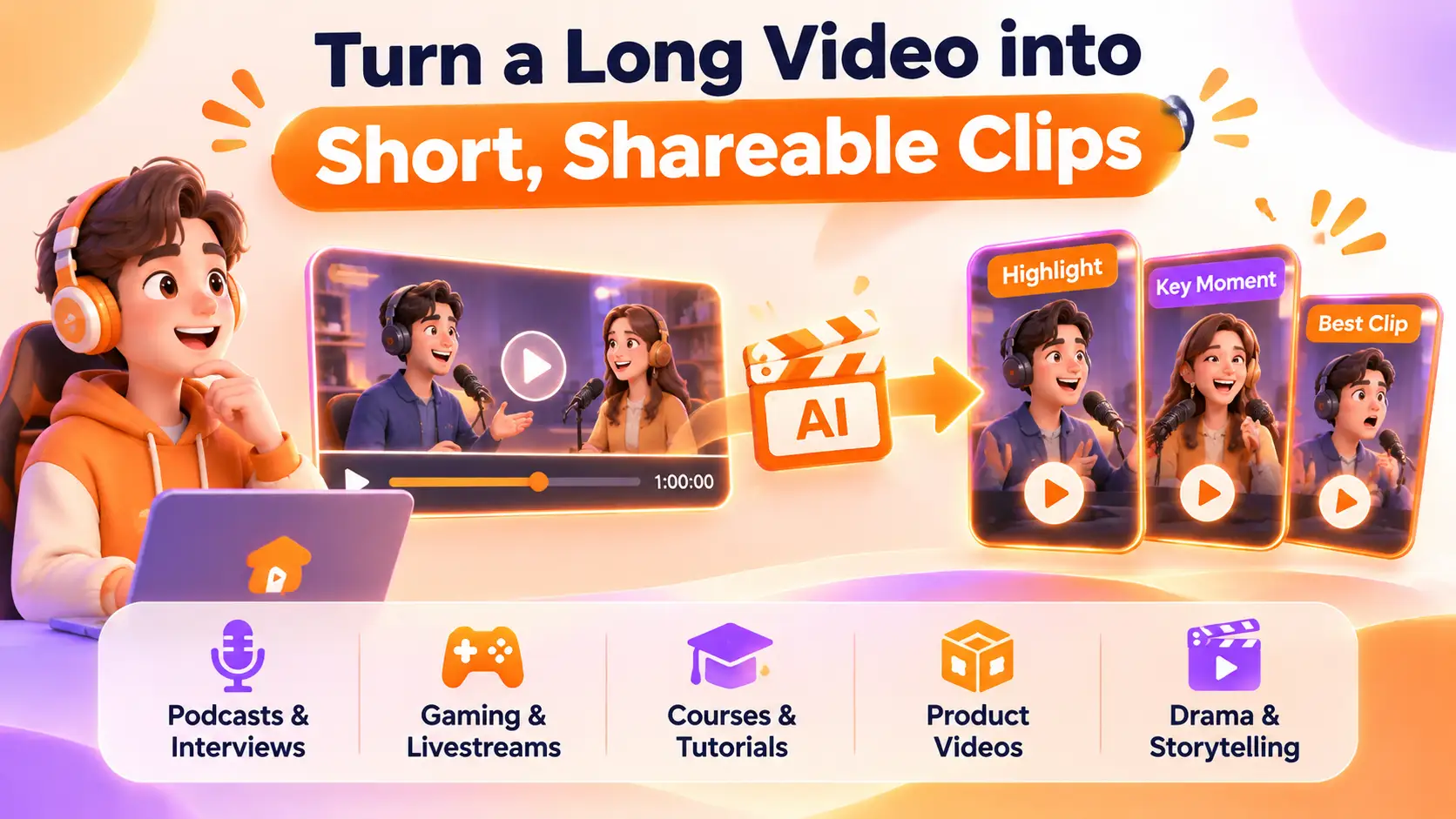
If you regularly create podcasts, livestreams, interviews, or other long-form videos, you probably know how much time it takes to turn one recording into several short clips. You have to review the footage, find interesting moments, cut each section, and prepare the videos for social media. A free AI video clip generator can simplify this process by analyzing your recording and suggesting moments that may work as standalone clips.
However, finding a tool that is genuinely useful is not as simple as choosing one labeled "free." Some tools limit the number of videos you can process, while others restrict downloads or add watermarks to exported clips. You may also find that automatically generated clips need so much editing that they save very little time.
The better approach is to compare tools based on what you can actually do with their free plans. This guide covers four things to check before choosing a free AI clipping tool, along with a simple way to turn an existing video into multiple highlight clips using LumenHut.
What Should a Free AI Video Clip Generator Actually Do?
A video clip generator works with footage you have already recorded. Instead of creating a completely new video from a text prompt, it analyzes an existing recording and identifies shorter sections that could be useful for social media posts, highlights, or promotional content.
For example, a podcast creator might have a one-hour interview containing several interesting answers, personal stories, and moments of disagreement. Finding those sections manually means watching much of the original recording again, whereas an AI video clip generator can identify candidate moments and make them easier to review.
Different types of videos also require different approaches to highlight detection.
| Video Type | Moments Worth Clipping |
|---|---|
| Podcasts and interviews | Interesting answers, strong opinions, stories, and reactions |
| Gaming and livestreams | Important plays, unexpected events, and exciting reactions |
| Courses and tutorials | Useful explanations, demonstrations, and key takeaways |
| Product videos | Feature demonstrations, product benefits, and important selling points |
| Drama and storytelling | Plot twists, emotional moments, conflicts, and suspense |
The most suitable tool depends on the type of content you create and how much control you need over the final clips. If you are still comparing different workflows, our guide to choosing an AI video clipping tool for long videos explains what to look for when working with longer recordings.
Four Things to Check Before Choosing a Free AI Video Clip Generator
1. Does It Find Highlights That Are Worth Watching?
The main reason to use an AI video clip generator is to spend less time searching through long recordings. However, generating a large number of clips does not necessarily mean the tool has identified the most useful moments.
A good free AI clipping tool should recognize moments that make sense in the context of the original video. For a podcast, this might mean keeping the question and the complete answer together. For a gaming recording, it could mean including enough of the action before a decisive play to help viewers understand what happened.
When testing a tool, pay attention to whether its suggestions match the type of content you produce. A system that focuses mainly on spoken words may work well for interviews but miss important visual events in gameplay. Similarly, a tool that detects dramatic scenes may not be the best choice for extracting complete explanations from an educational video.
Look for content-aware detection rather than simple automatic cutting. The goal is to find clips that have a clear subject, enough context, and a natural ending, so you do not have to rebuild every segment manually.
2. Can You Review and Export Clips Without a Watermark?
Automatic clipping is only part of the process. Before publishing a video, you should be able to review the selected moments, check their opening and ending, and make sure the content still makes sense outside the original recording.
A few things are worth checking before choosing a free AI video clipper:
- Preview controls: Can you watch each suggested clip before downloading it?
- Editing options: Can you adjust the clip or correct captions when something is wrong?
- Export formats: Does the tool support the formats and aspect ratios you need?
- Watermark policy: Can you download finished clips without a watermark on the free plan?
The last point is especially important if you plan to publish videos regularly. Some tools allow free generation but reserve clean exports for paid subscribers, which means the free version may be useful for testing but not for actual content production.
If you are specifically looking for a free AI video clipper without watermark, check the export conditions rather than relying on the word "free" in the product description. A short test download will tell you much more about the actual result.
3. Are the Free Credits and Video Limits Enough?
Free plans often come with restrictions, but the way those restrictions work can vary considerably. Some tools limit the number of clips you can generate, while others calculate usage according to the duration of the original video.
Before starting a project, check the input video limit, available credits, maximum file size, export permissions, and whether additional features require a paid subscription.
For example, LumenHut currently offers 30 free credits, and each credit processes one minute of input video. The free plan also supports watermark-free exports and does not require a credit card to get started.
This makes it easier to estimate how much footage you can process before beginning a project. A 20-minute recording, for example, requires approximately 20 credits, leaving 10 credits for another shorter video.
Working with a long recording? Check the video duration and your available credits before creating a project. LumenHut uses 1 credit per minute of input video, so longer recordings require more credits.
You can check the latest LumenHut pricing and free plan details before deciding whether the available allowance fits your workflow.
4. Is the Tool Easy to Use for Your Workflow?
A free AI video clip generator should make the editing process easier, not introduce another complicated workflow. Think about how you normally work with video files and whether the tool fits into that process.
For example, an online AI video clipper can be convenient when you want to access a tool through a browser, while desktop software may be more suitable if you regularly organize and process video files on your computer.
It is also worth checking supported video formats, project management, and privacy policies. If you work with client recordings, unpublished interviews, or internal training videos, understand how the platform handles uploaded files before using it.
The best free AI clipping tool is not necessarily the one with the longest feature list. It is the one that handles your usual video types, produces clips you can work with, and gives you enough free capacity to complete real projects.
How to Make AI Clips for Free with LumenHut
If you already have a long video and want to find its most interesting moments without reviewing the entire recording manually, you can try LumenHut.
LumenHut is a desktop AI highlight clipping tool for Windows and macOS. It analyzes existing videos using visual content, speech, and pacing, with detection designed for different content types, including gaming, live shopping, interviews, short dramas, courses, sports, and vlogs.
You can use it to create individual short clips or combine selected highlights into one video. Getting started only takes four steps.
Step 1: Download and Install LumenHut
Visit the LumenHut download page, choose the Windows or macOS installer, and complete the installation.
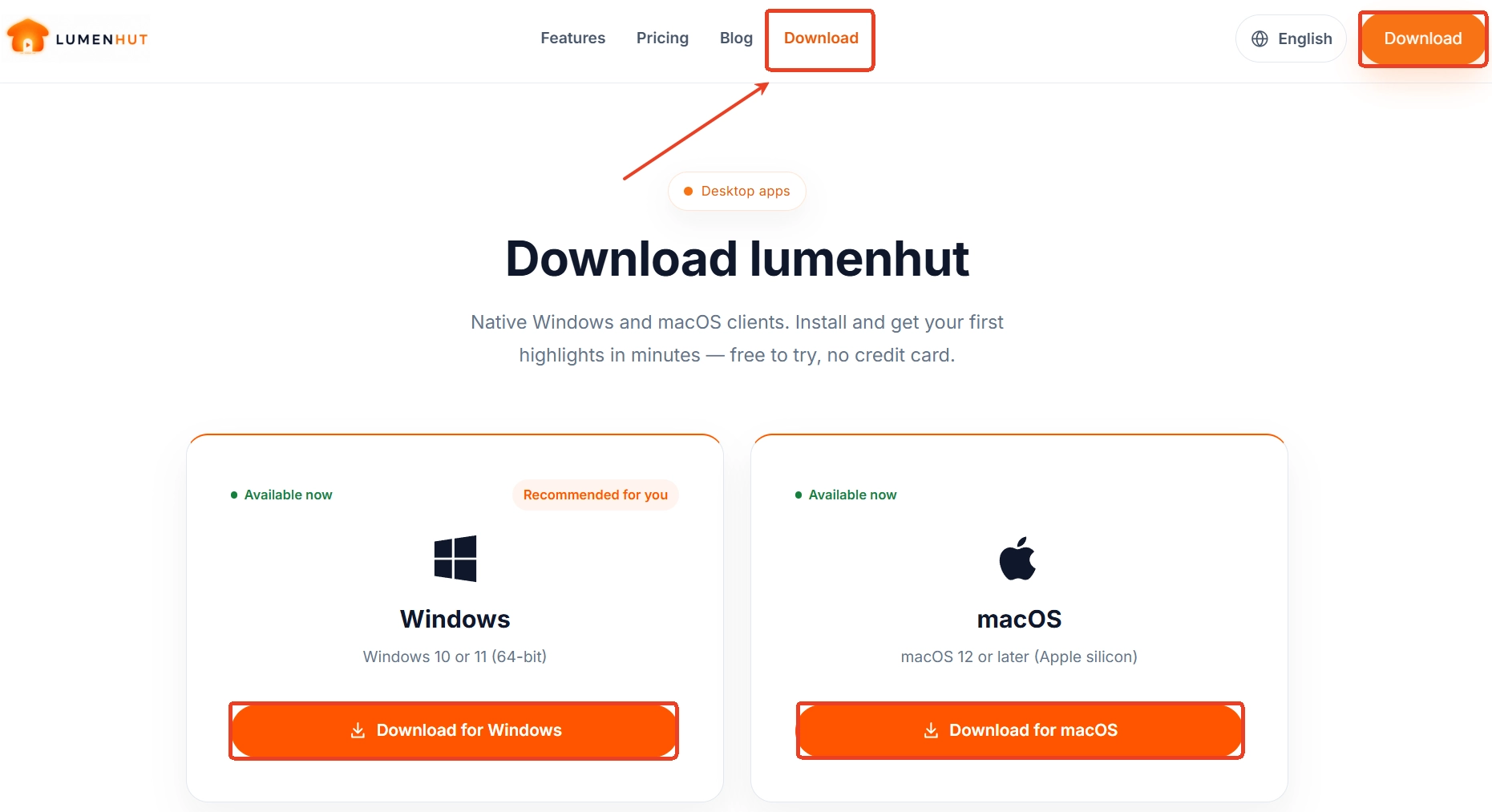
Choose the installer for your operating system and open LumenHut after installation.
Step 2: Upload a Video and Create a Highlight Project
On the home page, upload your video, select the appropriate Video Type, and enter the number of highlight clips you want to generate. Click Create Highlight Project to start the analysis.
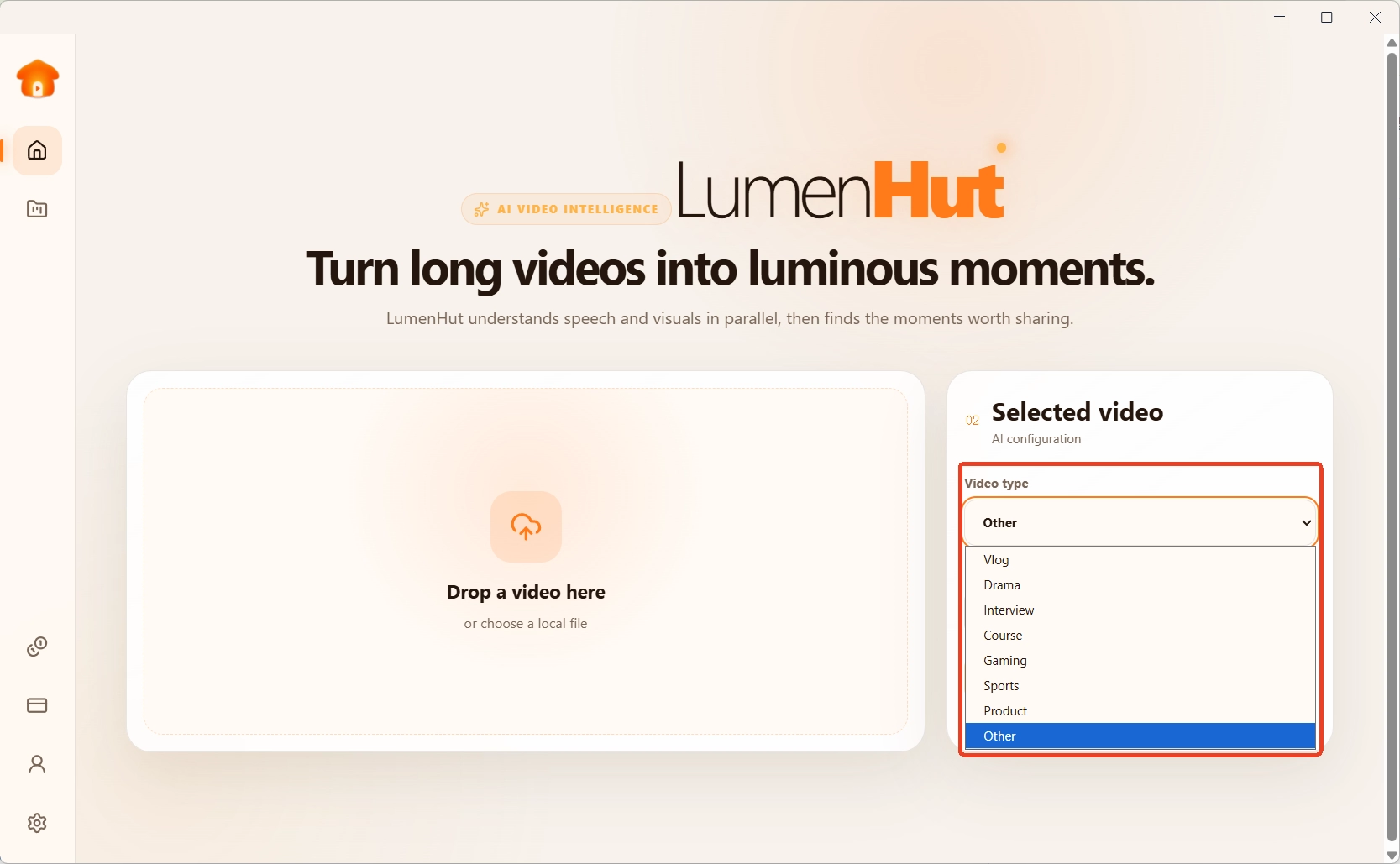
Upload your video, choose its content type, and set the number of highlights to generate.
Step 3: Review the AI-Generated Highlights
When the analysis is complete, open Projects from the sidebar and select your finished project. Preview the suggested clips and keep the moments that match your content goals.
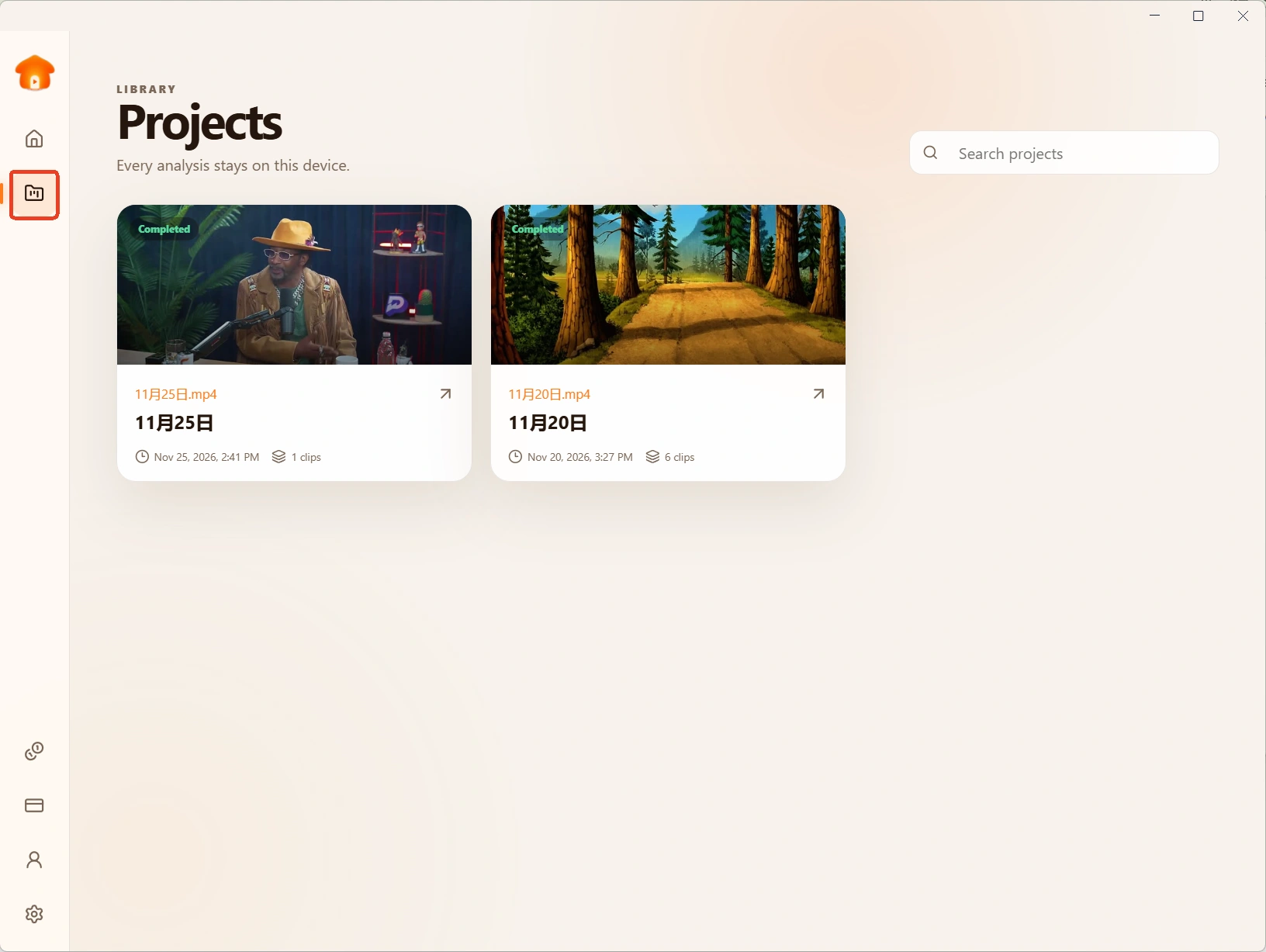
Preview the suggested highlights and select the clips you want to keep.
Step 4: Export Your Selected Clips
Once you have finished reviewing the clips, choose the export method that fits your needs. Use Batch Export to save multiple clips as separate video files, or choose Merge & Export to combine selected moments into one highlight reel. You can also download an individual clip directly from its card.
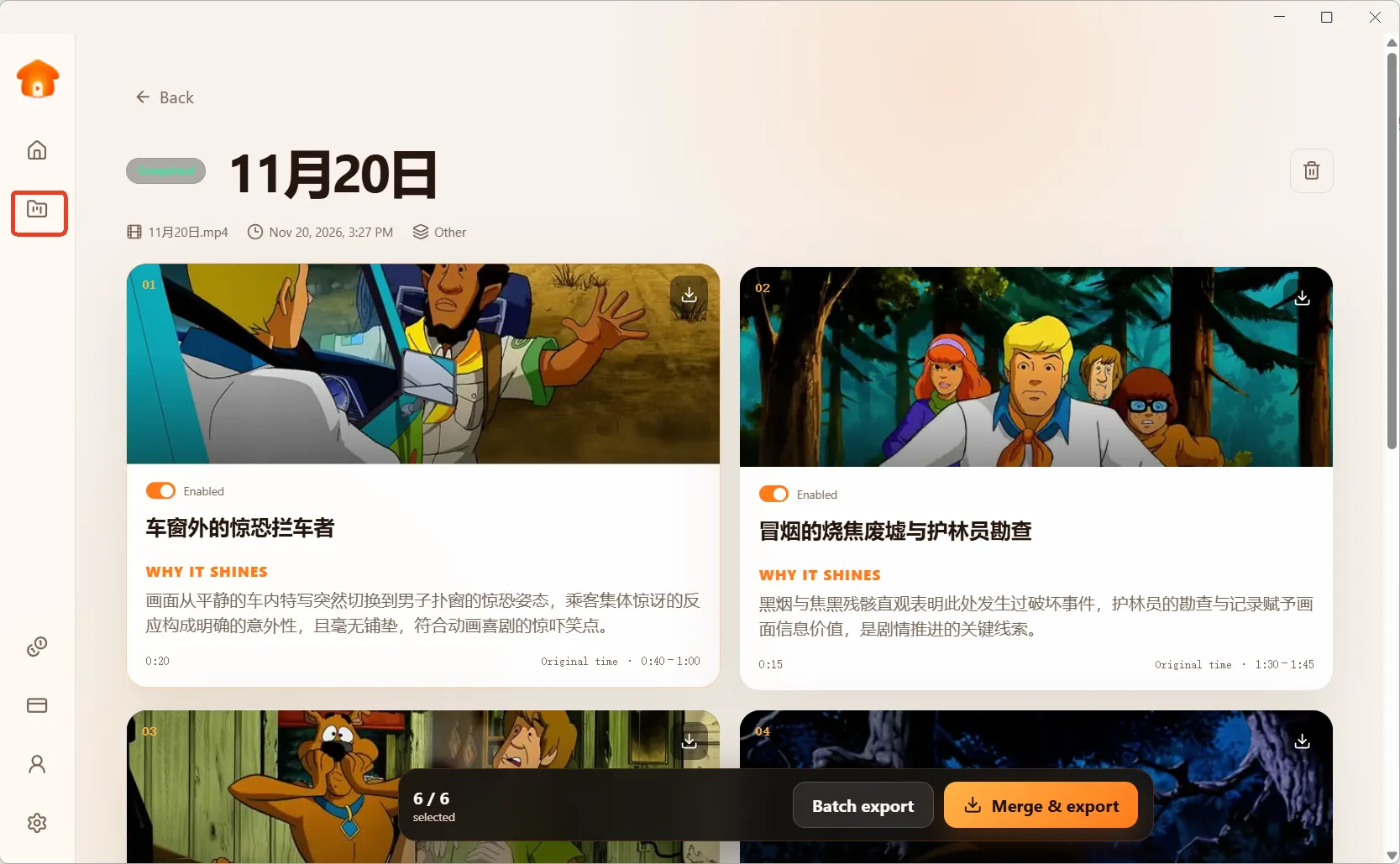
Export individual clips in one batch or combine your selected highlights into a single video.
For more details about how different highlight creation methods compare, see our guide to five ways to make a highlight video faster.
Frequently Asked Questions
1. Is There a Free AI Video Clip Generator Without a Watermark?
Yes. Some tools allow users to generate and download clips without adding a watermark, although the number of videos or processing minutes may be limited.
LumenHut's current free plan includes 30 credits and supports watermark-free exports without requiring a credit card. You can check the pricing page for the latest details.
2. Can I Use a Free AI Clip Generator to Make Clips from YouTube Videos?
Some tools allow users to paste a YouTube URL, while others require a video file to be uploaded from a computer. If you are searching for a free AI clip generator from YouTube or a way to use YouTube video to clips AI free, check the import options before choosing a tool.
LumenHut currently works with imported video files, so you should prepare the video on your computer before creating a project. Make sure you have the necessary rights to use and edit the original footage.
3. Is an Online AI Video Clipper Better Than Desktop Software?
It depends on how you work. A free AI video clipper online may be convenient for occasional tasks or when you need browser-based access, while desktop software can be a better fit for creators who regularly work with local video files.
LumenHut provides Windows and macOS desktop applications, allowing users to manage their video clipping projects from their computers.
4. Can a Free Viral Clip Maker Automatically Create Viral Videos?
An AI tool can identify interesting moments, emotional reactions, strong statements, and other potential highlights, but no free viral clip maker from video can guarantee views or engagement.
The final result still depends on the quality of the original content, how well the clip communicates its main idea, and whether it matches the interests of your audience. Review the generated clips and make adjustments before publishing rather than relying entirely on automatic selection.
5. How Long Should AI-Generated Clips Be for YouTube Shorts?
The ideal length depends on the content. A short clip should include enough context to make the moment understandable without keeping unnecessary pauses or repeated information.
YouTube currently accepts square or vertical Shorts of up to three minutes. Before publishing, check the latest official YouTube Shorts upload requirements to make sure your exported video meets the platform's specifications.
Final Thoughts
Choosing a free AI video clip generator is about more than finding software that can automatically shorten a video. The real value comes from identifying useful moments, preserving enough context for viewers to understand them, and exporting clips that are ready for your publishing workflow.
Before committing to a tool, test it with a video you already know, check whether its suggested highlights are worth keeping, and make sure its free plan provides enough processing capacity without unexpected watermark restrictions.
If you regularly turn podcasts, livestreams, interviews, courses, or other long recordings into short-form content, give LumenHut a try. Its AI highlight detection can help you find candidate moments, review the results, and export individual clips or a complete highlight reel without spending hours searching through the original footage.
Download LumenHut and start turning your long videos into shareable highlights.