The right AI video clipping tool should do more than divide a long recording into shorter files. It should identify moments that make sense on their own, let you correct weak cuts, and export clips in a format you can actually publish. Which product is best depends on the source footage: a podcast needs complete thoughts and reliable speaker framing, while a gaming stream depends more on visual events, reactions, and timing.
If you want the short answer, compare tools in this order: highlight quality, fit for your content, editing control, output options, and the real cost of usable exports. Features such as viral scores and one-click publishing can be helpful, but they matter only after the tool consistently finds moments worth keeping.
A good clipper reduces the time spent searching. It should not force you to spend that time repairing context, captions, and framing afterward.
What is an AI video clipping tool?
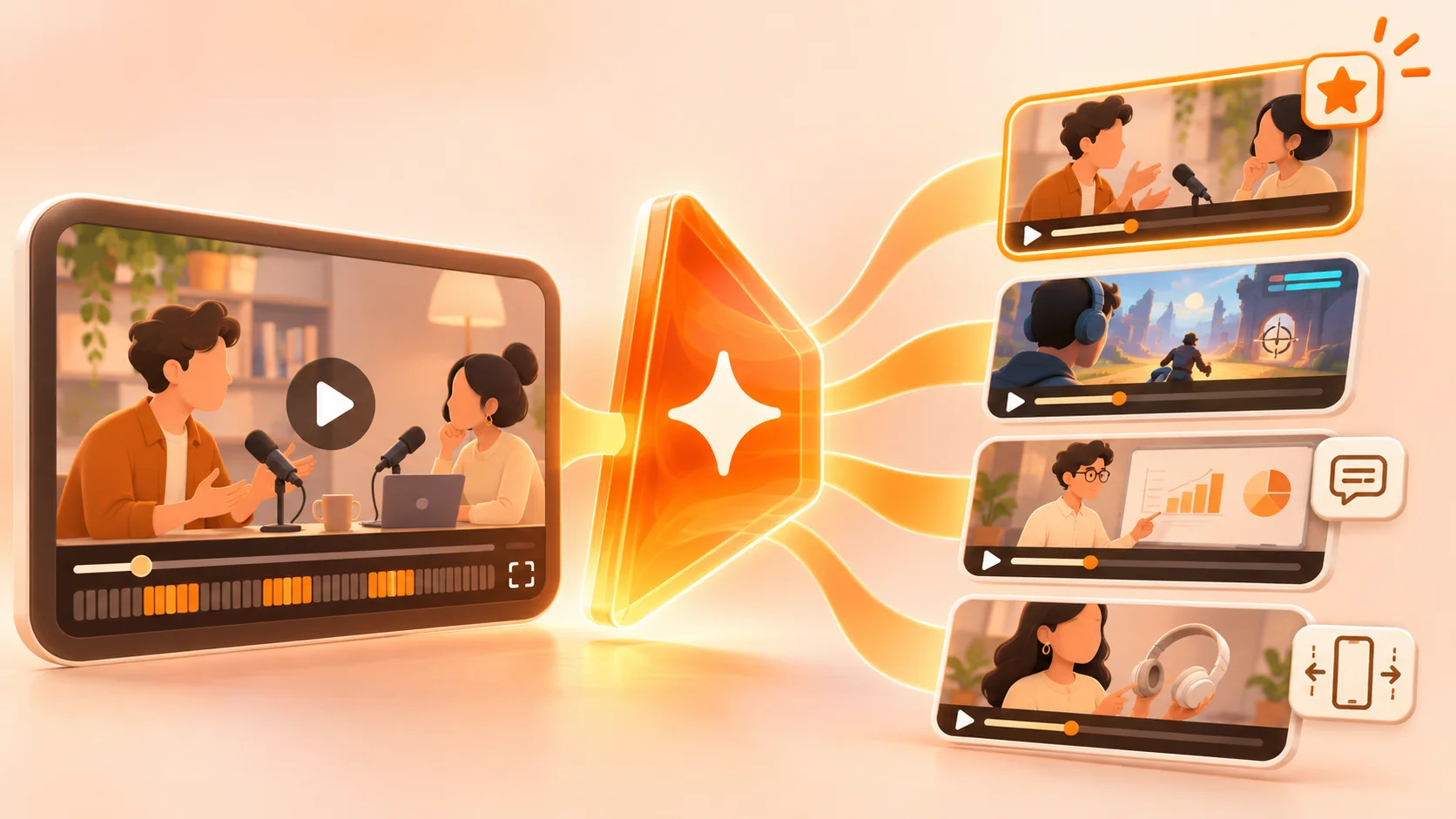
An AI video clipper analyzes an existing video and proposes shorter segments for social posts, previews, recaps, or highlight reels. Depending on the product, it may use the transcript, visual events, speaker changes, audio energy, pacing, or a combination of these signals. Many tools also add captions, reframe landscape footage for vertical platforms, and provide a basic editor before export.
This is different from an AI video generator, which creates new footage from text, images, or other prompts. Searches about Veo, text-to-video models, or whether ChatGPT can generate video belong to a different product category. If your goal is to reuse a podcast, webinar, course, livestream, product demo, or gaming recording that already exists, video clipping—not video generation—is the relevant workflow.
What to look for in an AI video clipping tool
Highlight detection that finds complete moments
The central question is not whether the software can make cuts; almost every editor can do that. The question is whether it can locate a section with a clear opening, enough context, and a satisfying payoff.
When evaluating a trial, use a video you already know well and check whether the tool finds the moments you would have marked manually. Reject clips that begin with an unexplained pronoun, omit the answer to the question, or end halfway through a reaction. A tool that generates fewer coherent candidates may save more time than one that produces dozens of fragments.
Detection suited to your content
“Best moment” is content-specific. Useful signals include:
| Source video | What a strong detector should recognize |
|---|---|
| Podcast or interview | Complete insights, quotable answers, disagreements, emotional turns |
| Gaming or livestream | Decisive plays, reversals, reactions, action sequences with enough setup |
| Course or tutorial | Self-contained explanations, demonstrations, conclusions, practical takeaways |
| Product video | Clear benefits, demonstrations, price or feature reveals, objections and answers |
| Drama or narrative video | Conflict, suspense, reversals, emotional peaks, scenes that remain understandable |
A transcript-first tool may be effective for talking-head content yet miss a speech-light visual event. A general video editor may be easy to use but offer less specialized moment detection. Look for a content mode, prompt, or detection method that matches the footage you publish most often.
Review and editing control
AI suggestions should be editable. At a minimum, you should be able to preview the original time range, adjust the start and end points, correct captions, reject unsuitable clips, and recover context from the source video. This matters because even capable systems can cut a sentence too tightly or favor an energetic moment that does not support your actual message.
Scores can help sort the queue, but they are not proof that a clip will perform well. Audience fit, factual accuracy, rights, campaign timing, and brand risk still require human judgment.
Captions, reframing, and export options
For social use, check whether the product can:
- Generate editable captions rather than permanently applying unchecked text.
- Track the active speaker when converting horizontal footage to 9:16.
- Handle two-person conversations, screen shares, products, scoreboards, or gameplay overlays without hiding essential information.
- Export the aspect ratios and resolutions your channels require.
- Preserve an editable project when the first automatic crop or caption pass needs correction.
Caption accuracy deserves particular attention. Names, prices, technical terms, and negations are easy to misrecognize, and a single error can change the meaning of a short clip.
Batch output, reels, and project management
If you publish frequently, evaluate the work that happens after the first clip. Can the tool export several approved clips together? Can it combine selected moments into a highlight reel? Does it keep projects, source timecodes, and publishing status organized?
These features are less important for someone making one occasional Short, but they can determine whether a weekly podcast or livestream workflow remains manageable at scale.
Transparent free limits and pricing
“Free” can mean a trial, a small monthly allowance, watermarked exports, restricted resolution, temporary storage, or no editor after generation. Check the conditions that affect usable output:
- Input minutes or credits
- Maximum source length and file size
- Number of generated or exportable clips
- Watermark policy
- Export resolution and formats
- Storage or project-expiration period
- Features reserved for paid plans
Estimate cost from your real source volume. A creator processing two 60-minute podcasts each month should compare 120 minutes of input, not the advertised price alone.
Direct clippers, editors, and workflow tools are not the same
Product roundups often group several kinds of software under “AI video clipping,” even though they compete in different ways:
- Dedicated AI clippers make automatic moment detection and long-video repurposing a central job. OpusClip, Vizard, Klap, Choppity, Reap, 2short.ai, and gaming-focused Eklipse fall into this direct or vertical-competitor group.
- General video editors with clipping features compete as substitutes when users prefer to keep cutting, captions, layouts, and effects in one editor. Descript, CapCut, and VEED fit this category.
- Recording or content-workflow platforms add clipping as a downstream feature. Riverside is most relevant when a recording already lives in its ecosystem, while products such as Castmagic or Quso compete for the broader repurposing and distribution workflow.
- Adjacent generators may create faceless or prompt-based short videos rather than find moments in an existing long source. They overlap with the desired output, but they do not solve exactly the same task.
This distinction is more useful than a single “best tools” ranking. A full editor may be the better choice if you already work there every day, whereas a dedicated clipper is more attractive when finding highlights is the main bottleneck.
Which type of AI clipper fits your content?
Choose according to the job you repeat most often:
- Podcast and interview teams: prioritize coherent statements, speaker-aware framing, transcript correction, and enough control to restore missing context.
- Gaming and livestream creators: prioritize visual and audio event detection, support for low-dialogue footage, overlays, and highlight-reel assembly.
- Course and webinar producers: prioritize topic-based selection, accurate terminology, longer clip ranges, and landscape as well as vertical exports.
- Marketers and product teams: prioritize brand consistency, product-detail visibility, approval workflows, batch exports, and publishing organization.
- Occasional creators: prioritize a clear free allowance, no unexpected watermark, a short learning curve, and editable results rather than team features.
If your library contains several content types, a general-purpose product with content-specific detection may be a better fit than a specialist optimized for only podcasts or only gaming.
How to make highlight clips with LumenHut in four steps
LumenHut is a Windows and macOS app that finds highlight clips in existing long videos. It analyzes the picture, speech, and pacing, then places the suggested clips in a project for review.
The workflow has four main steps:
1. Download and install LumenHut
Go to the LumenHut website, select Download for Free, and install the Windows or macOS version. Open the app when the installation finishes.
2. Upload a video and create a highlight project
On the home page, upload the video you want to clip. Choose its video type, enter the number of highlight clips you want, and select Create highlight project. LumenHut will then analyze the video and find candidate moments automatically.
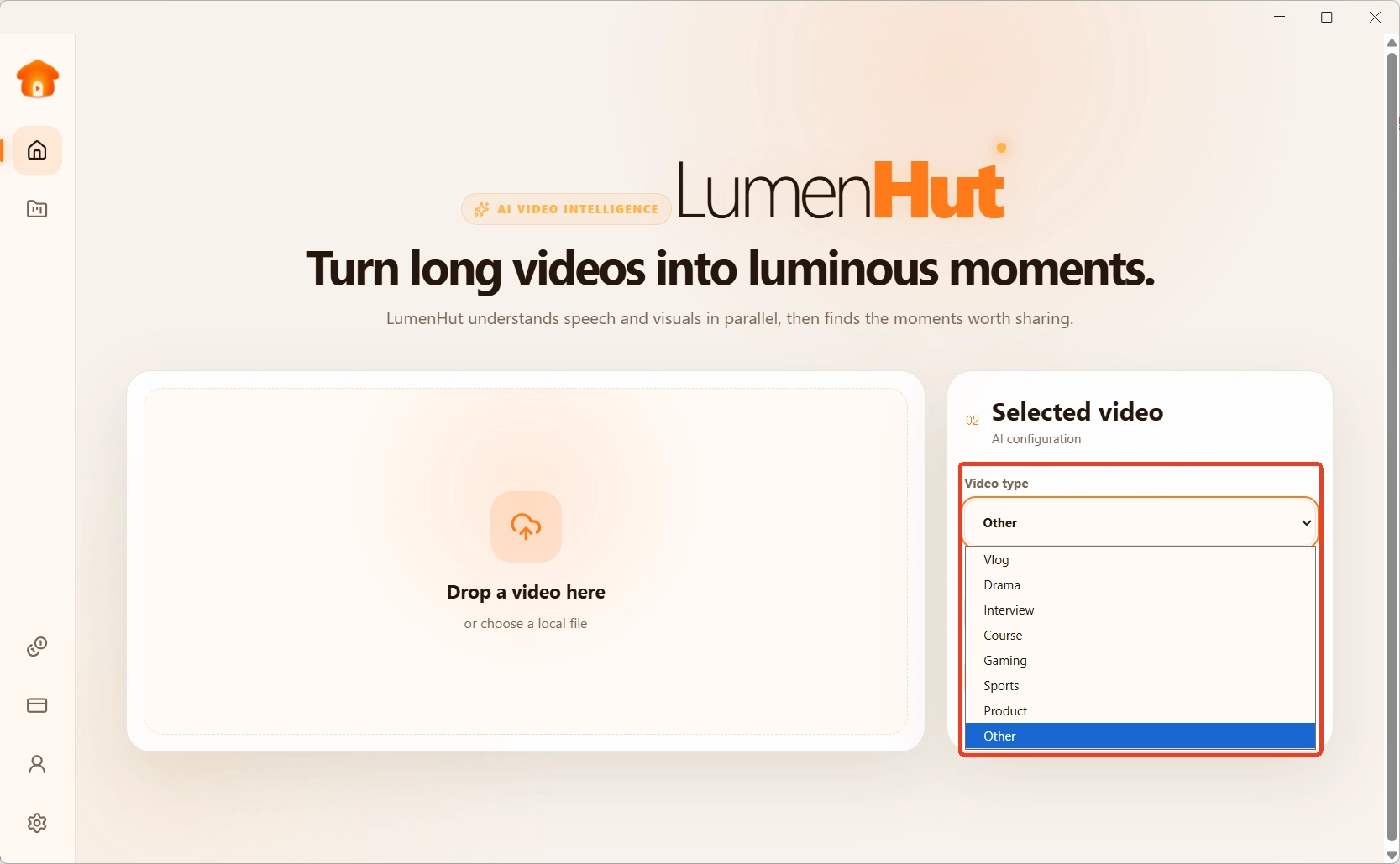
Choose the closest video type and set the number of clips before starting the project.
3. Open the project and view the highlight clips
When the analysis is complete, open Projects from the sidebar and select the finished project. The project page shows the highlight clips created from the original video. Open any clip to preview it, check its duration and original time range, or download it.
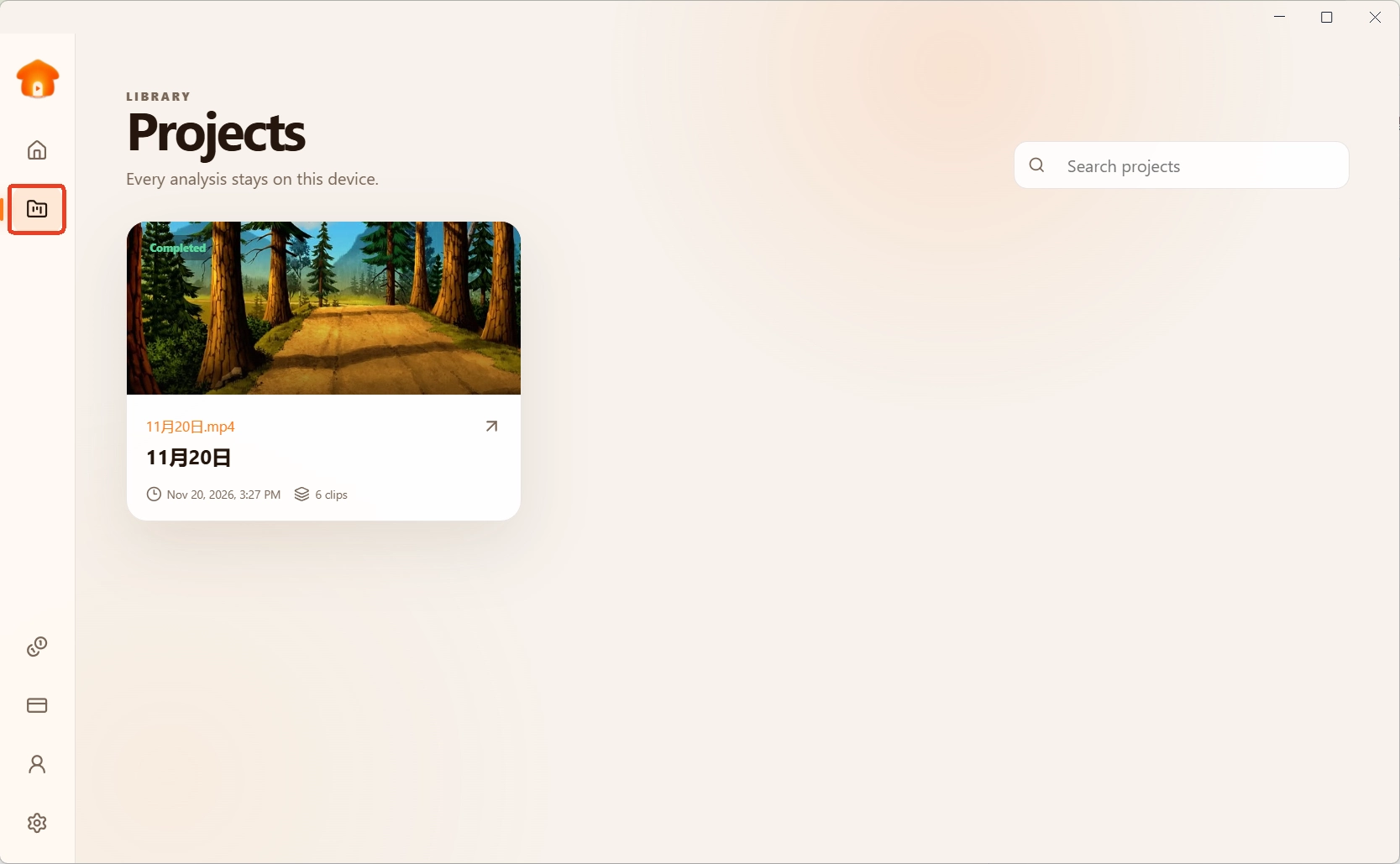
Completed videos appear in Projects with their status and number of highlight clips.
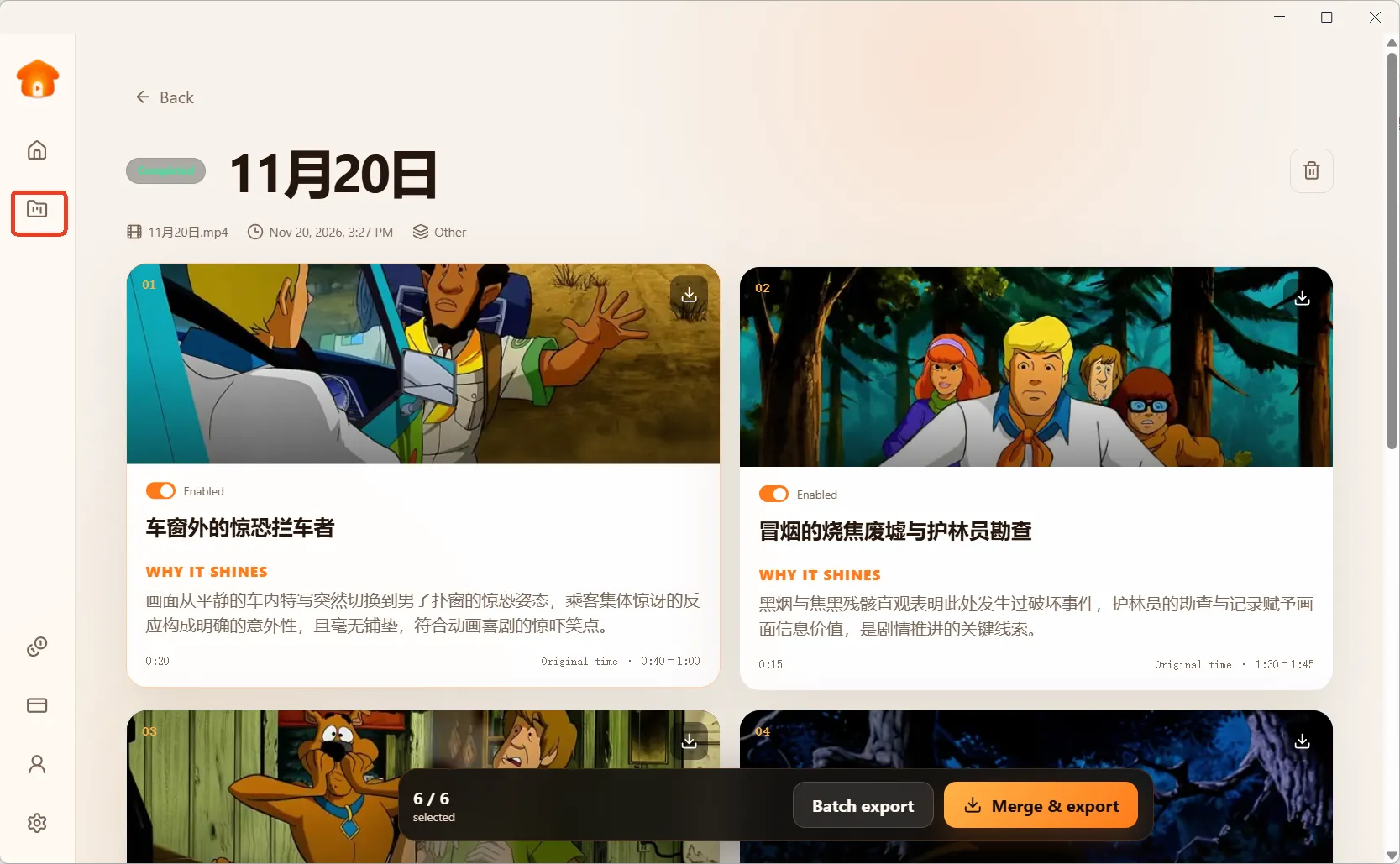 Each clip includes its duration and original time range, so you can quickly review the AI-selected moments before downloading them.
4. Check the credit balance and transaction history
Open Credit details to see the current balance and every credit record. The list shows when credits were added, used, refunded, or expired, which makes it easier to understand changes in the account balance.
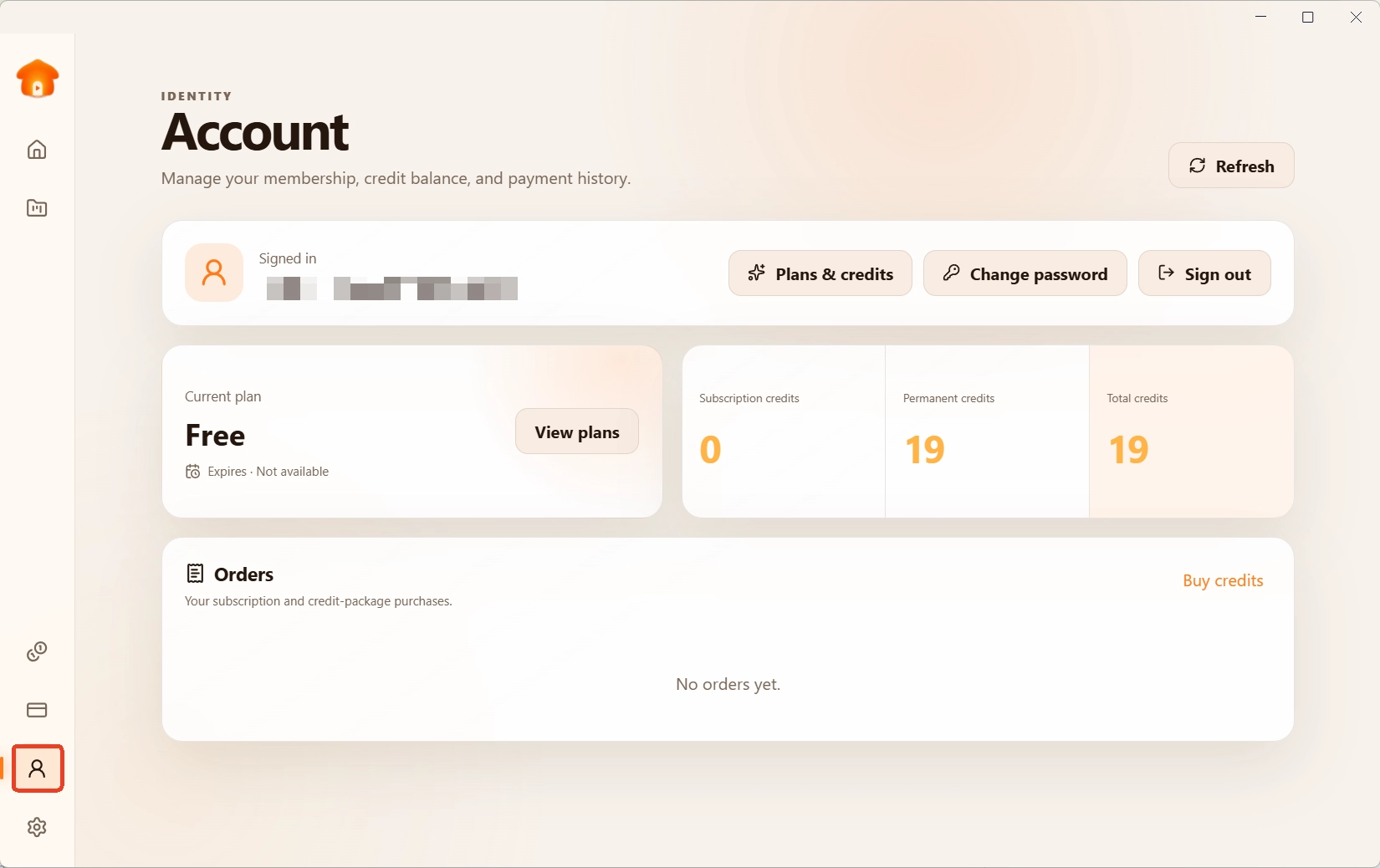
The Account page shows the current plan and balance. Open Credit details to view individual credit records.
For a detailed repurposing process rather than a tool-selection guide, read how to turn one long video into multiple highlight clips with AI.
Frequently asked questions
Is there an AI that can automatically clip videos?
Yes. Dedicated AI clipping tools and several general video editors can analyze an existing long video, propose highlight segments, add captions, reframe the picture, and prepare short clips for export. The amount of manual review and editing still required varies by product and source type.
What is the best AI clipper for video?
There is no universal winner. For podcasts, prioritize complete conversational moments and speaker framing; for gaming, prioritize visual-event detection; for marketing teams, prioritize brand controls, approvals, batch output, and project organization. Test the same representative source in two or three tools and compare the usable clips rather than the total clips generated.
Is there a free AI video clipping tool without a watermark?
Some products offer watermark-free free output, while others limit minutes, resolution, editing, storage, or exports. LumenHut's pricing page currently lists a 30-credit free plan without a watermark, but the terms should be rechecked before publication because free plans change frequently.
Can an AI clipping tool turn YouTube videos into Shorts?
Many tools accept a YouTube link or a local source file and can create vertical clips, but support differs by product and plan. Use videos you own or are authorized to repurpose, and confirm the current YouTube Shorts requirements before export.
Can an AI video clipper replace manual editing?
It can replace much of the searching and first-pass cutting, but a person should still review context, captions, framing, rights, and brand fit. The most reliable workflow is automatic candidate generation followed by a focused human approval pass.
Choose for the footage you actually publish
Do not choose an AI clipper from a feature count alone. Start with a representative video, define what a successful clip should contain, and compare how many candidates remain usable after you correct context, captions, and framing. The tool that produces the most clips is not necessarily the one that saves the most time.
If content-specific highlight detection, editable results, individual clips, and combined reels match your workflow, download LumenHut and test it with a source you already know well. Familiar footage makes it easier to judge whether the AI found the moments you would have chosen yourself.