When a podcast episode is recorded, the time-consuming part is rarely the editing itself—it's finding something worth publishing inside a conversation that runs tens of minutes or even an hour. A guest may share plenty of useful ideas, but not every remark works as a standalone short video: some begin without the context of the host's question, some end before the thought is finished, and others become misleading once you strip away the surrounding exchange.
An AI podcast clipping tool can surface candidate clips worth reviewing, and you decide which ones to keep. This guide walks through the whole process—choosing segments, working in lumenhut, and the checks to run before you publish—so you can turn an existing video podcast or interview recording into several short videos.
Cutting a podcast into clips isn't just about pulling out one punchy quote. Each video should center on a clear question, so viewers who never heard the full episode can still follow along.
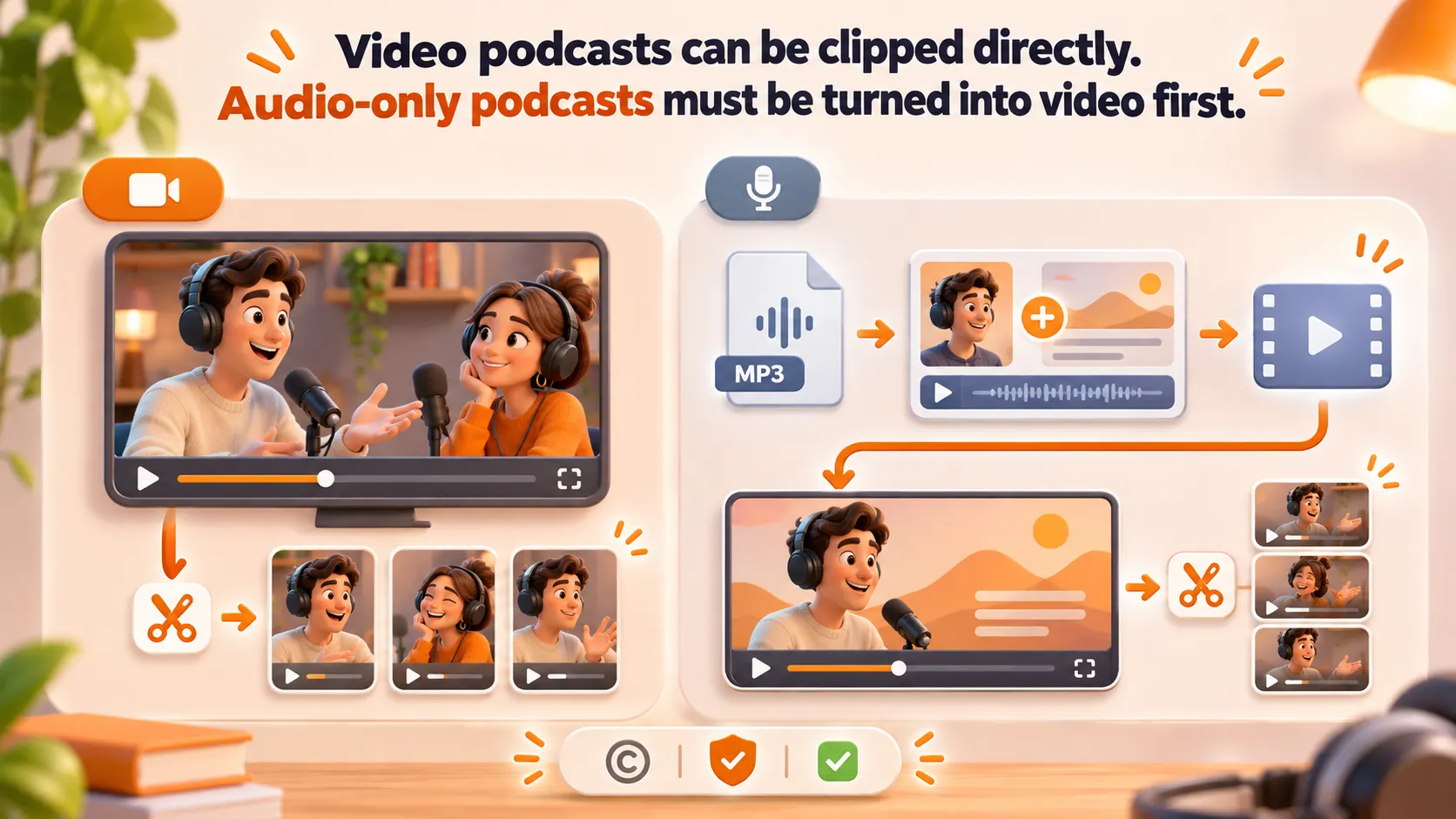
How is a video podcast different from an audio-only podcast?
If you already have footage of the host and guest, you can hunt for highlights directly in the original video and cut them into clips sized for short-video platforms. That's the main workflow this guide covers.
If all you have is an MP3 or other audio file, you'll first need another video editing tool to pair the audio with your show cover, licensed guest photos, or relevant visuals, then export it as a video file. The lumenhut workflow below starts from an existing video—it does not convert raw audio straight into a podcast video.
Before you begin, make sure you have the rights to edit and publish the material. If the video contains a guest's likeness, background music, images, or other third-party assets, double-check the usage rights for each.
Which parts of a podcast are worth cutting into short videos?
When choosing clips, don't just chase the single most striking line. What matters more is content that still makes sense without the full episode. For example:
| What to clip | What to look for |
|---|---|
| Complete Q&A | The host asks a clear question and the guest gives a useful answer |
| An experience or story | A specific situation, the problem it created, and how it turned out |
| Opinions and disagreement | Both sides share different views and explain their reasons |
| A practical tip | One step, technique, or detail worth noting is explained clearly |
Once you've picked a topic, ask yourself three questions: Can viewers tell what's being discussed? Did the guest finish the main thought? Does the segment stay on one subject?
For example, in EP696 of Theo Von's podcast This Past Weekend, guest Katt Williams shared a story about giving a Rottweiler puppy to a family during a difficult stretch of his life. Theo Von then told an unexpected story of his own about looking after someone's dog.
The two accounts create an interesting contrast, and Katt's reaction makes the exchange even more engaging. What makes this segment worth studying is its clear setup, an unexpected turn, and a natural response. If you clip only the final reaction, viewers won't know what happened; keeping the necessary setup and follow-up makes the segment far easier to understand.
A good clip should explain just one thing. If a conversation touches on team management, pricing, and hiring all at once, look for a complete answer to each topic separately rather than stitching several subjects together just to hit a runtime.
How to make AI podcast clips with lumenhut
lumenhut is an AI highlight-clipping tool for Windows and macOS. Once you import an existing video, it analyzes both the speech and the visuals to surface candidate clips worth reviewing. For video podcasts and guest interviews, follow the steps below.
1. Download and install Lumenhut
Head to the lumenhut download page, pick the Windows or macOS version that matches your computer, install it, and open the app.
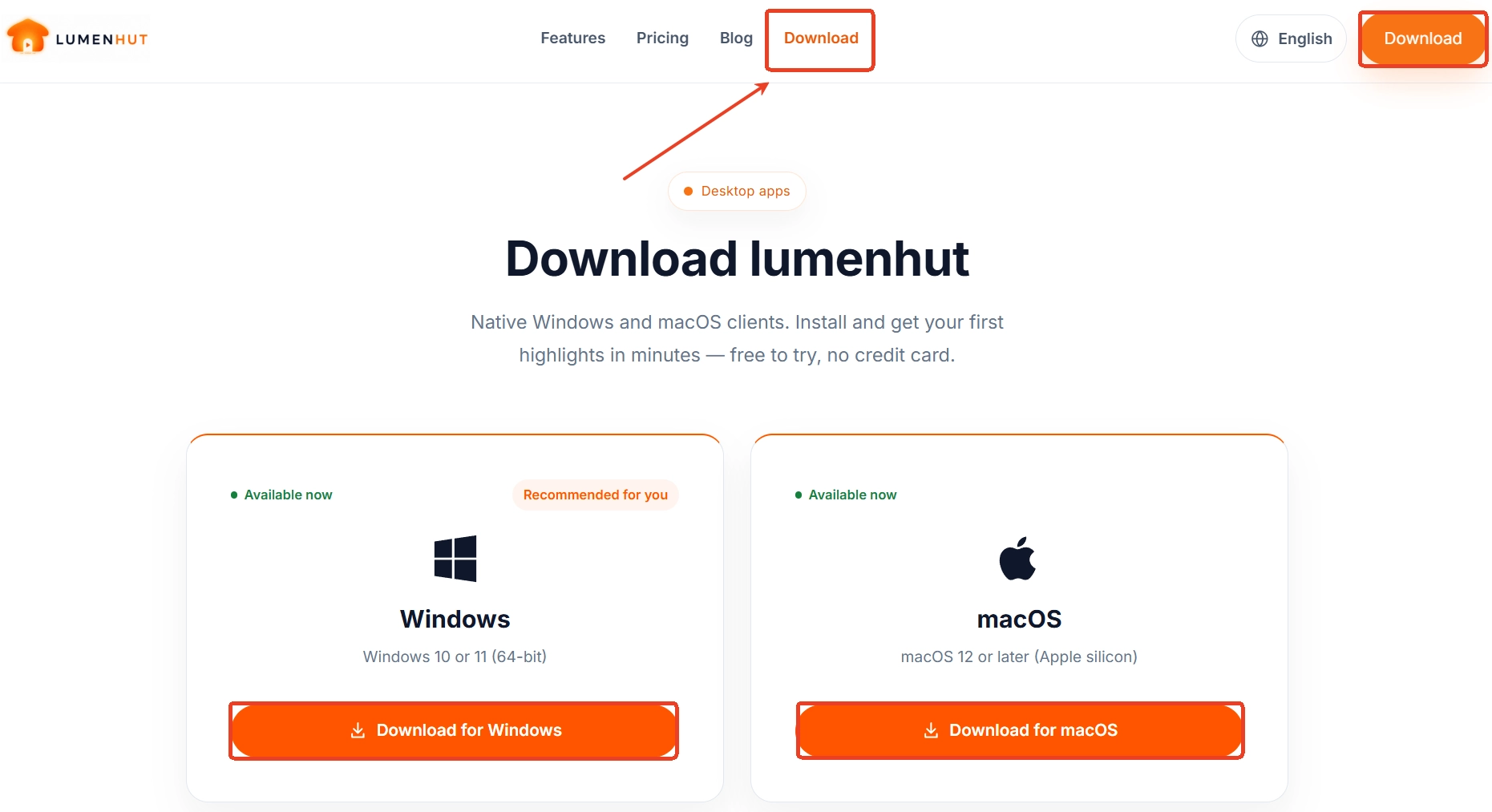
Choose the installer that matches your operating system on the download page.
2. Upload your podcast video and choose a content type
On the app's home screen, drag your podcast video into the upload area or click it to choose a local file. Once the video loads, set the video type on the right to Interview, which suits podcast interviews, two-person conversations, and guest spots.
Next, under Number of highlights, set how many candidate clips you'd like generated, then click Create Highlight Project. If it's your first time, start with a small number so you can check each candidate against the episode's theme.
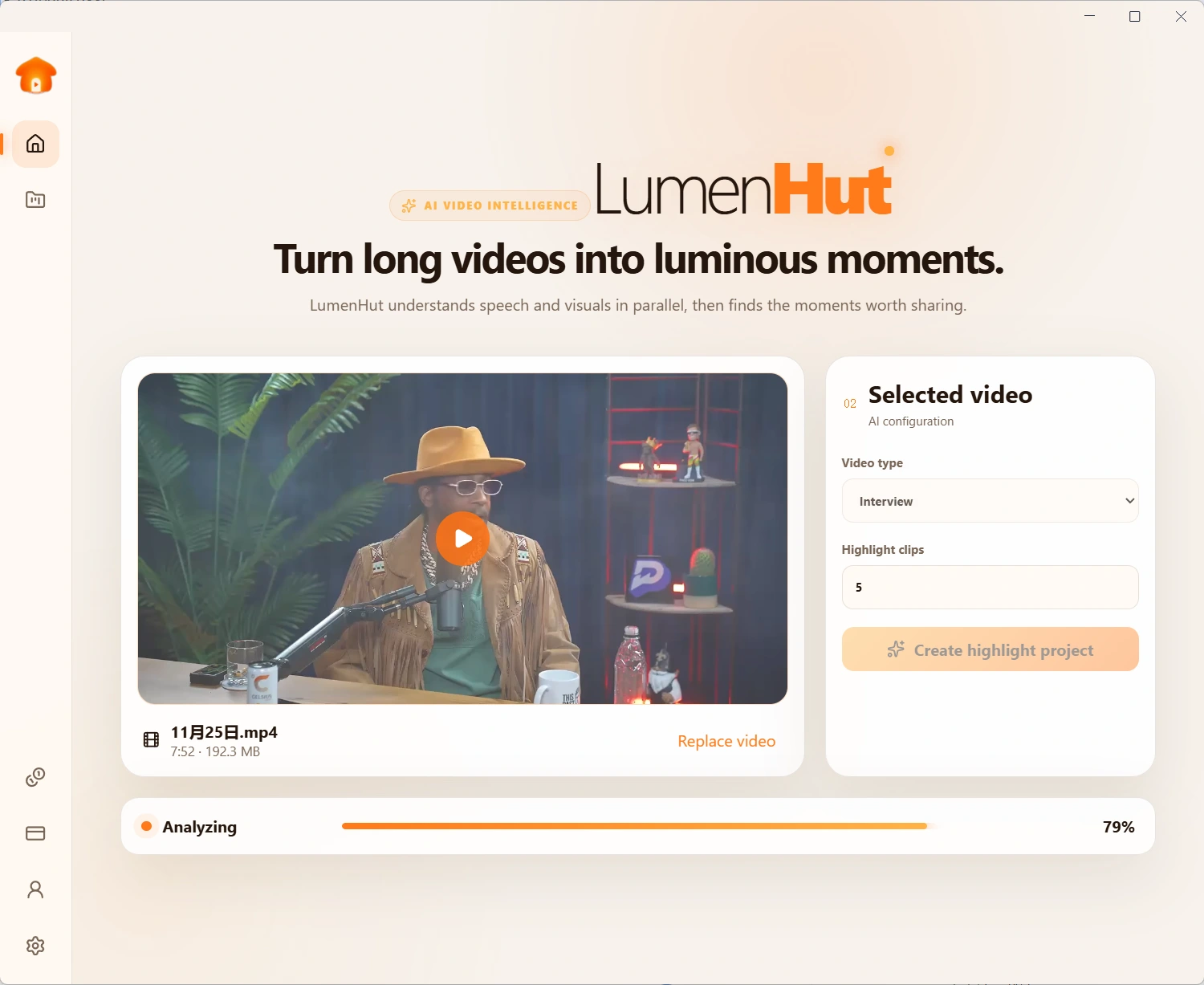
For podcasts or guest interviews, choose Interview as the video type; once you've set the video type and the number of highlights, click Create Highlight Project to start the analysis.
3. Wait for the analysis to finish and open the project
After you create the project, lumenhut starts analyzing the video. When it's done, click Projects in the left sidebar and find your video in the list. Once its status reads Completed, click the project card to see the candidate clips the AI identified.
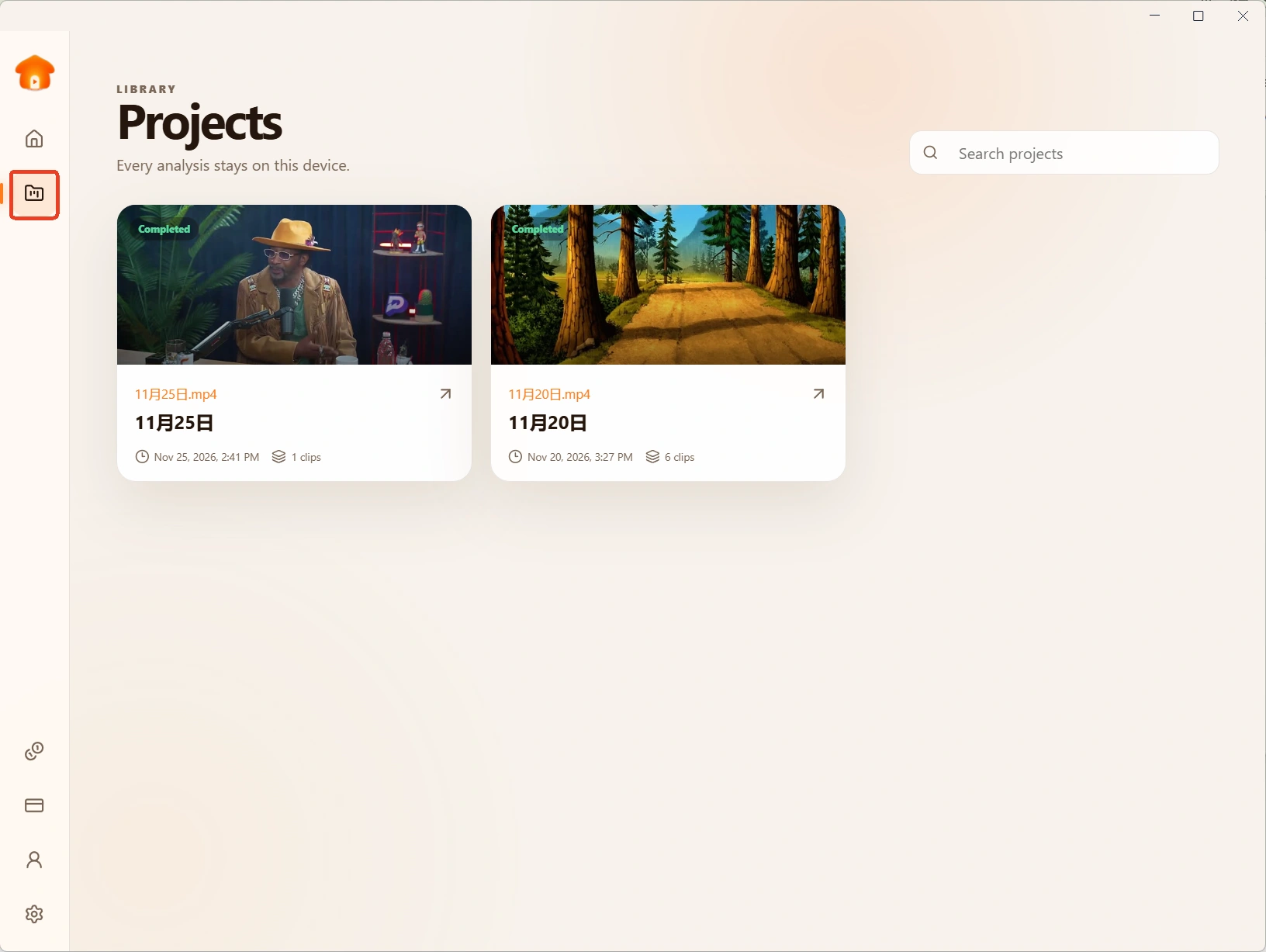
Find the video project marked Completed in the Projects list, then click its card to review the results.
4. Review the candidate clips and export
Inside the project, you'll see the candidate clips the AI generated. Each card shows the clip's preview, title, reason it was highlighted, duration, and timestamp in the original video.
Preview them one by one to confirm the content is complete and fits the episode's theme. Keep the clips you want under Enabled; switch off the ones you don't plan to use.
Once you've made your pick, choose an export method based on how you'll use the clips:
- Bulk export: Save each selected clip separately—ideal for splitting one podcast into several standalone short videos.
- Merge export: Combine the selected clips into a single video, perfect for a podcast highlight reel.
- If you only need one clip, you can also click the download icon on its card.
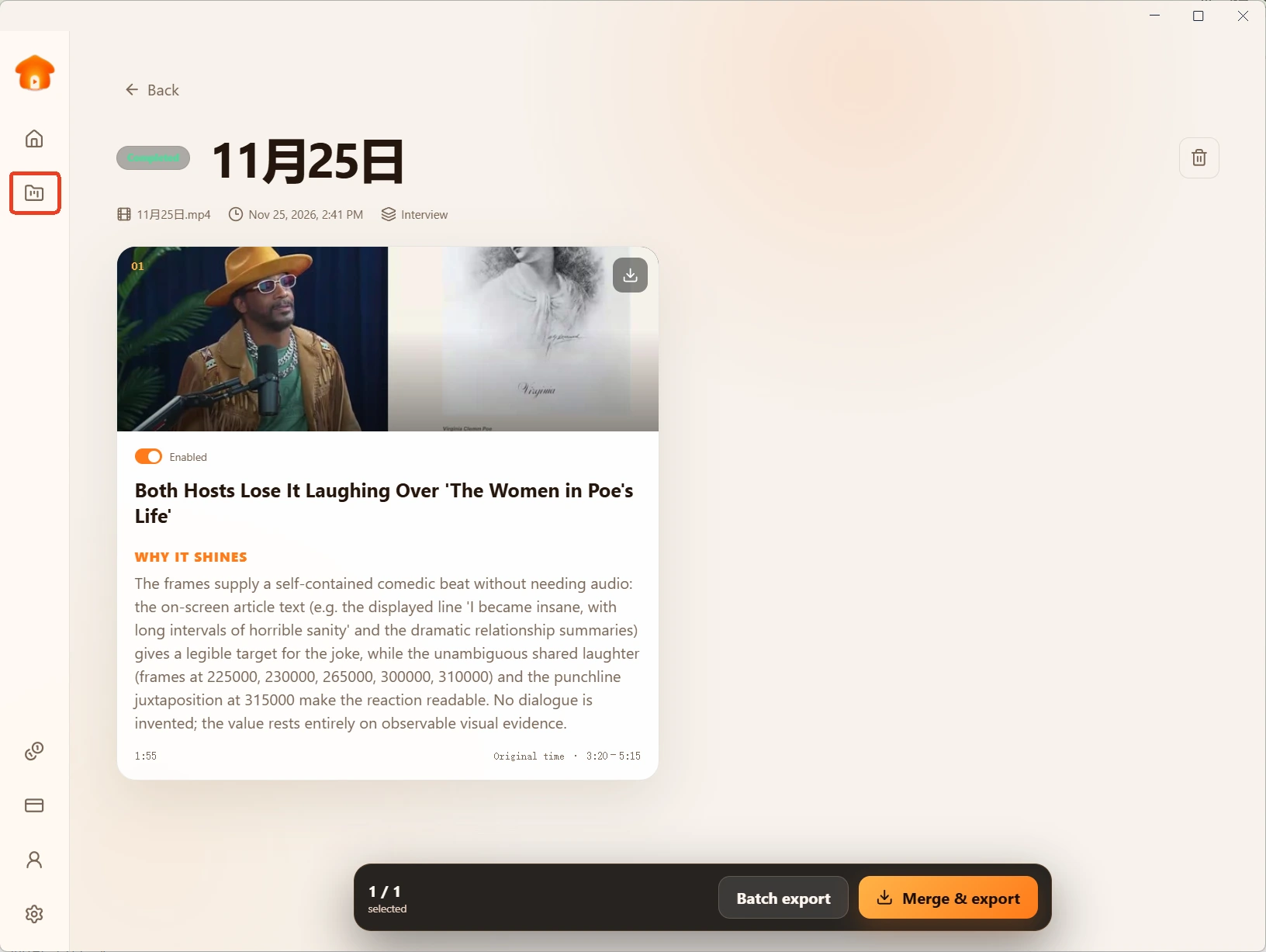
After reviewing each candidate clip, use Bulk export to save several videos separately or Merge export to put together a highlight reel.
To see how many credits this analysis used, open Credit Details in the left sidebar and check the Highlight Analysis record. The actual amount shown in your account is what counts.
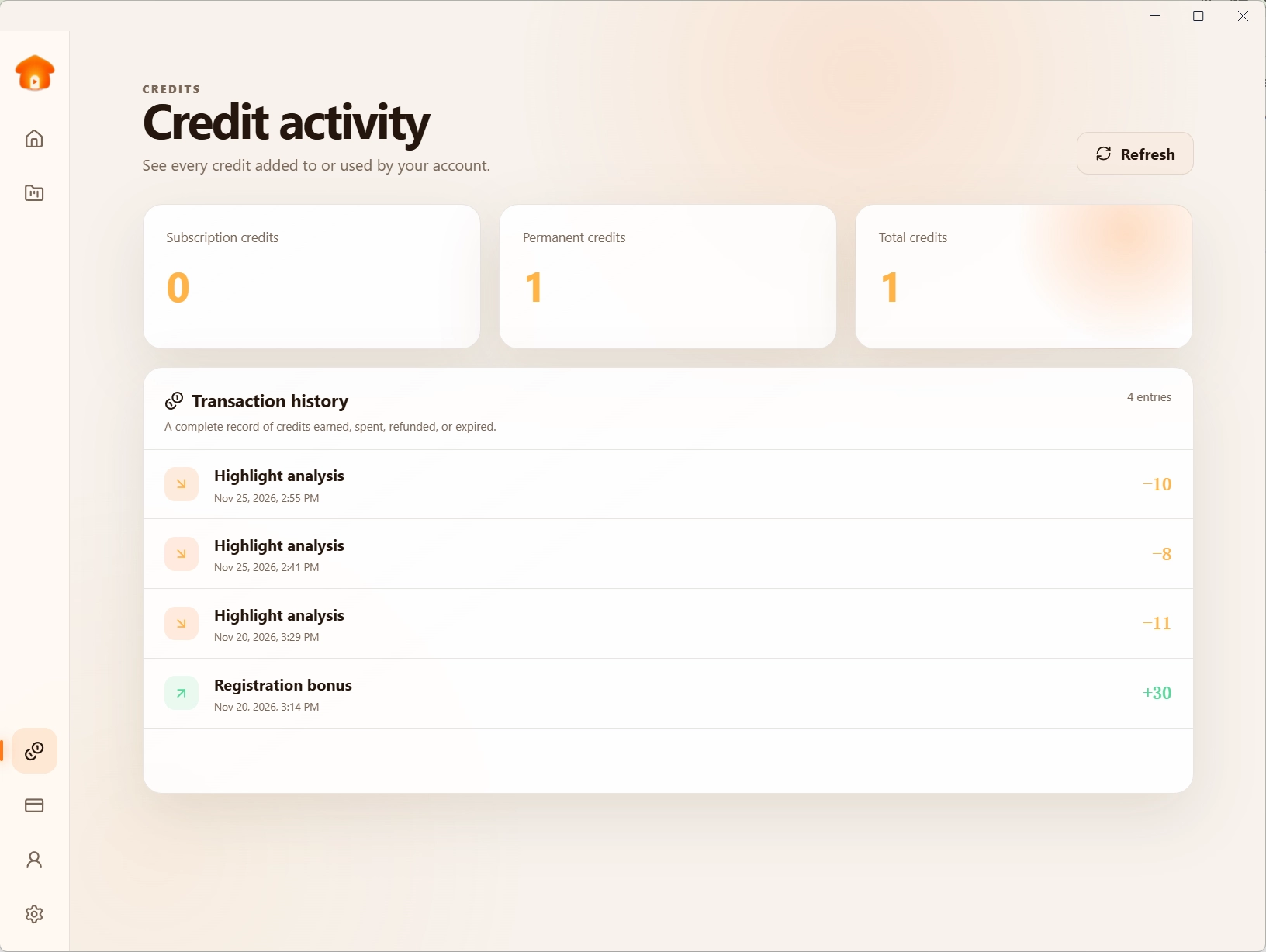
In Credit Details you can review the credit consumption records for highlight analysis.
The clips AI generates are candidates awaiting review—not every one is ready to publish as-is. Check the content first, then decide whether to export it on its own or merge it into a reel.
What details should you check after AI finds the highlights?
Once you've identified and exported the highlights, take a closer look at the content and visuals before posting to TikTok, Instagram Reels, YouTube Shorts, or similar platforms. lumenhut helps you find candidate highlights; captions, framing, and sound can be finished in a video editing tool as needed.
1. Are the beginning and ending complete?
If a clip opens with "Yeah, I thought the same thing," viewers won't know what came before. Jump back to the timestamp in the original video and add the host's question or the necessary background. The same goes for the ending: if the guest cuts off mid-step, include the explanation that follows; if the answer is already complete, just trim the extra pauses.
2. Does the vertical frame cut anyone off?
Podcasts are usually filmed in landscape, so making a 9:16 vertical video means more than cropping the center. When two people trade lines frequently, check that both remain visible; if one guest does most of the talking, you can emphasize the current speaker while keeping necessary listener reactions. If the clip includes a demonstration, make sure it's still legible after cropping.
3. Are the captions accurate and easy to read?
Pay special attention to guests' names, brand names, numbers, technical terms, and words like "no" or "not" that flip the meaning. When people speak over each other, confirm the caption is attributed to the right speaker. Break lines at natural pauses and keep captions clear of faces and platform buttons.
4. Are voices and background music clear?
Dialogue is the heart of a podcast. First, make sure the host and guest don't swing wildly in volume, then check that the background music isn't drowning out speech. When you remove pauses, don't cut the sentences so tight that it sounds rushed—leaving natural breaths and tone makes the clip easier to listen to.
After exporting, play the whole clip from start to finish once to catch clipped words, black frames, audio falling out of sync with the video, or captions covering the action. Don't rely only on the partial preview inside the editing software.
Common problems when making podcast clips
| Problem you run into | Likely cause | How to fix it |
|---|---|---|
| AI finds many clips, but few are usable | Candidates lack context or don't match the episode's goal | Review each one against its timestamp in the original video and keep only clips that explain one issue clearly |
| The video opens mid-thought | You cut the host's question or necessary background | Add a few seconds at the start and keep the question, or explain the topic with a short caption |
| The guest isn't finished when the video ends | The clip was cut too early | Watch what follows and add the key explanation or the full conclusion |
| One person disappears after cropping to vertical | You cropped the center without accounting for where people sit | Adjust the framing; if needed, use a top-and-bottom split or switch to a single-speaker shot |
| Several clips look alike | The same answer or point was reused | Re-select by distinct questions, stories, and viewpoints instead of just changing the title |
Frequently asked questions about podcast clipping
How long should a podcast clip be?
There's no single runtime that fits every podcast. Short Q&As can be brief, while stories, reasons, and concrete methods need enough breathing room. Aim for one complete idea or answer first, then adjust the length to the platform requirements. Don't delete key explanations just to hit a fixed number of seconds.
Do I need a transcript before making AI podcast clips?
Not necessarily. If you already know the material well, you can import the video directly and let AI help find candidate highlights. If the episode is long, you need to locate a specific remark, or several people are choosing segments together, a transcript and timestamps can help you pinpoint moments in the original video.
Can I make clips with lumenhut if I only have podcast audio?
The lumenhut workflow described here takes a video file as input. If you only have audio, add your show cover, licensed photos, or relevant visuals in another video editing tool to compose a video file, then import that.
Can clips exported from lumenhut be published directly?
A manual check is still recommended after export. Confirm the clip has no broken sentences or missing background, then check captions, framing, and sound. If you're posting a vertical short, finish any remaining adjustments to match the target platform's aspect ratio and publishing requirements.
Start with one episode and make your first batch of clips
To make podcast clips, start with an episode you know well: pick a few questions worth sharing, use lumenhut to find candidate highlights, review each for completeness, and export the clips that work as standalone posts.
If you want to split one long video into several shorts, try lumenhut's AI highlight-clipping feature and then decide which clips are worth keeping based on your actual footage. Let AI save you time hunting for moments, and spend the effort on judging the content and the final polish.